
Last verified: 15 September 2026. This article is for informational purposes only and is not affiliated with or endorsed by the Immigration & Checkpoints Authority (ICA).
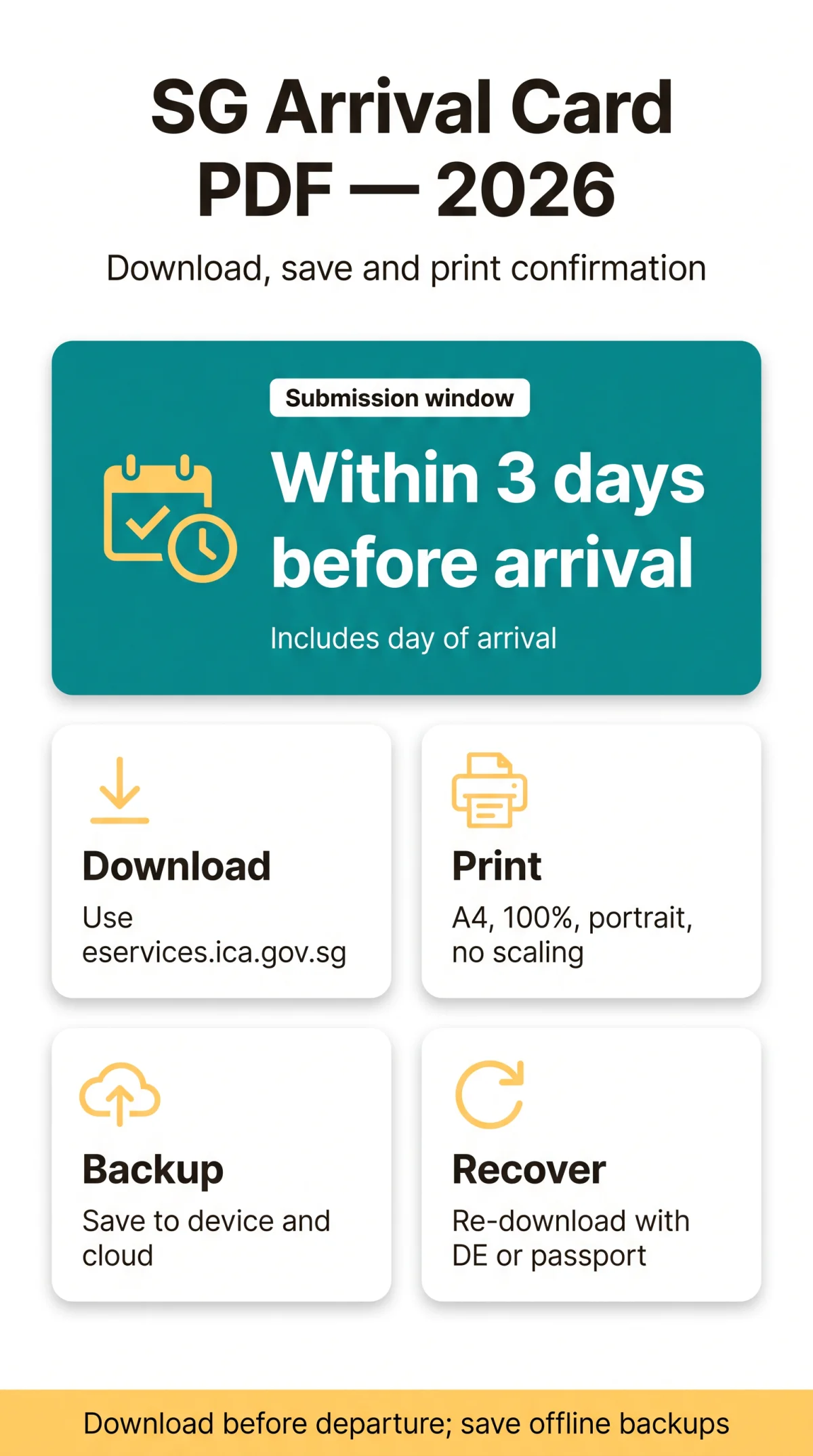
The SG Arrival Card confirmation PDF (with DE number and QR code) is generated instantly after submission via the ICA e-Service portal. Download from the confirmation page or email attachment. Print on A4 at 100% and save offline for Changi Airport immigration clearance.
The PDF is a free digital document issued only through the web-based SGAC e-Service, not the MyICA Mobile app. Verify your passport number, full name, and flight details before printing, and retain the document for your entire stay in Singapore.
What Is the SG Arrival Card Confirmation PDF and When Do You Submit?
The SG Arrival Card confirmation PDF is a free digital document issued by the ICA e-Service portal after submission. It is not a visa. It is the electronic replacement for the paper DE card (white card), discontinued on 27 March 2020 as announced in the ICA media release on the transition to the electronic SG Arrival Card. The PDF contains your full name, passport number, nationality, arrival date, flight details, a unique DE number, and a scannable QR code used by immigration officers at Changi Airport.
The PDF is generated through the web-based SGAC e-Service only. The MyICA Mobile app provides confirmation but does not produce a downloadable PDF file. An individual submission takes 5 to 7 minutes and includes the mandatory Electronic Health Declaration (e-HDC) as a bundled component.
Submit your SG Arrival Card within 3 days before arrival, including the day of arrival. For example, arriving on 15 September 2026 means you can submit from 12 September 2026 onward. The service is free of charge (SGD 0). Commercial third-party form services are not endorsed by or affiliated with ICA and charge a fee for a service that costs nothing.
How to Download the Singapore Arrival Card PDF from the Portal and Email
Complete and verify all form fields
on the portal at eservices.ica.gov.sg/sgarrivalcard/.
Click Submit
The confirmation page loads, displaying your DE number and traveller details.
Click the Download button
The SG Arrival Card confirmation PDF opens in a browser tab (desktop) or saves to your Downloads folder (Android).
Save the file
On desktop, use the browser save function; on iOS, tap Share then Save to Files; on Android, check Downloads in File Manager; on Windows, right-click then Save As; on Mac, drag the file to your desktop.
Back up to cloud storage
(Google Drive, iCloud, or Dropbox) for redundancy.
The ICA also sends an acknowledgement email with the SG Arrival Card PDF as an attachment to the address you declared during submission. If the email is missing, check your spam or junk folder first. The portal works best on Edge, Firefox, Chrome, and Safari. If the PDF will not download, disable pop-up blockers for eservices.ica.gov.sg in your browser settings.
Editor’s note (tested September 2026): We tested the download flow on an iPhone 16 Pro (iOS 18) and a Samsung Galaxy S24 (Android 14). On iOS, the PDF opened in a new tab. Tap the share icon, then “Save to Files” to store it locally. On Android, the file landed directly in the Downloads folder via Chrome. The acknowledgement email arrived within 2 minutes in both tests.
How to Print the SG Arrival Card PDF Correctly for Immigration
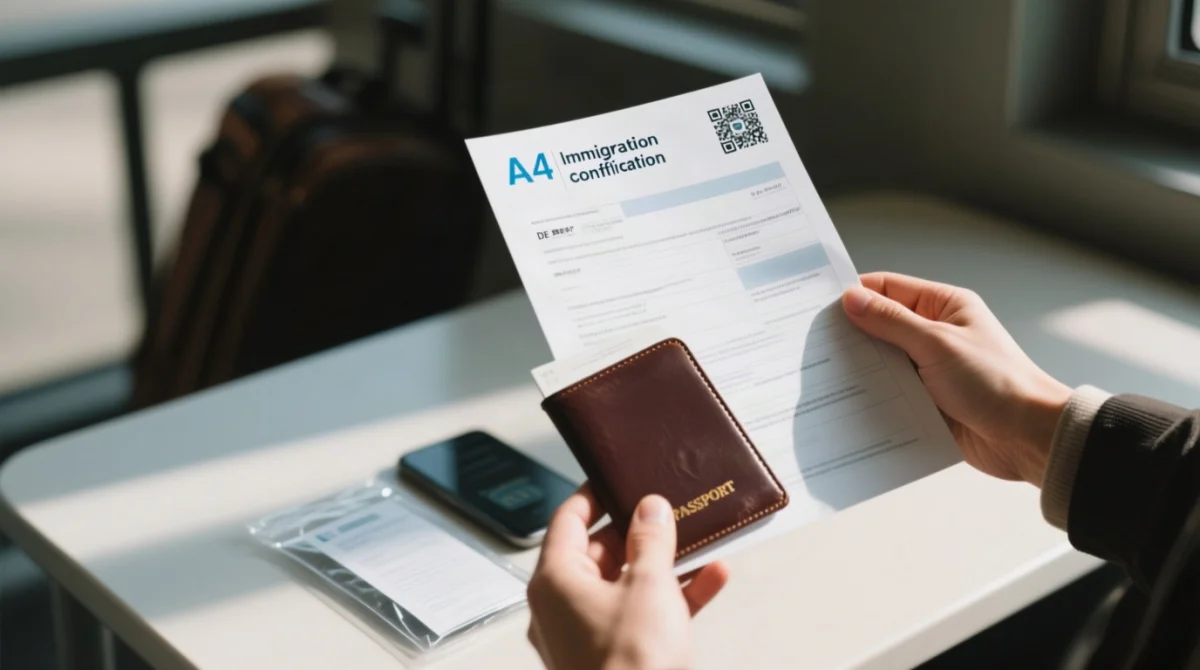
Print the SG Arrival Card confirmation PDF on A4 paper at 100% actual size to ensure the QR code scans reliably at Changi Airport immigration. The PDF is not password-protected and opens directly in Adobe Acrobat Reader, any browser viewer, or Apple Preview.
Open the PDF and launch print dialog
Press Ctrl+P (Windows) or Cmd+P (Mac).
Set paper size to A4
(UK standard). Choose Actual size / 100% scale. Do not select “scale to fit,” as this distorts the QR code dimensions.
Select orientation and sides
Select portrait orientation and single-sided printing. Colour printing is recommended for QR code contrast; black-and-white may work but is not guaranteed.
Verify four data points
Before printing, verify four data points: the QR code is scannable, the DE number is visible, the traveller name matches the passport, and the passport number matches the travel document.
Print a second backup copy
and store it in a separate bag. Keep the digital PDF saved on your phone as a parallel offline backup.
Printing tip from our test: We tested the PDF on a Brother HL-L2350DW and an HP LaserJet Pro M404n. Both produced scannable QR codes when printed at 100% scale on standard A4 copy paper. Avoid “fit to page” in the print dialog, as this shrinks the QR code and caused scan failures in our tests.
For group submissions, each traveller receives an individual SG Arrival Card PDF with their own DE number. Print every family member’s document separately.
How to Store, Recover, and Present Your SG Arrival Card PDF
- Download before departure. In-flight Wi-Fi is unreliable. Retrieve the SG Arrival Card confirmation PDF while still on the ground.
- Save to two locations. Store the file in phone local storage plus a cloud service (Google Drive, iCloud, or Dropbox). Create a dedicated “Singapore Trip” folder for quick access at the airport.
- Keep a printed copy. A high-resolution screenshot of the QR code is a useful offline backup but is not guaranteed accepted at immigration. A physical printout or the original PDF file is safer.
- Re-download if lost. Go to the SGAC e-Service portal, enter your DE number or passport number plus date of birth, retrieve your submission, and download again. There is no limit to re-downloads. If the portal does not recognise your details, verify for typos. As a last resort, contact ICA at +65 6391 6100 (24-hour automated answering service). For a detailed walkthrough, see our guide on how to retrieve a lost Singapore Arrival Card PDF or confirmation email.
- Re-download after any update. Modifying details via the Update SGAC feature issues a new confirmation. The old PDF is superseded. Always download the latest version and discard the previous copy.
The SG Arrival Card confirmation PDF is not compatible with Apple Wallet or Google Wallet. Keep the raw PDF file and/or a printed copy for presentation at Changi Airport immigration.
Disclaimer: Immigration procedures, submission windows, and PDF requirements may change without prior notice. Always verify the latest instructions on the ICA SG Arrival Card page before your departure. This guide reflects information current as of September 2026.
Frequently Asked Questions (FAQ) on Singapore Arrival Card PDF download
Can I download the Singapore Arrival Card PDF on my phone?
Yes. After submitting via the web-based SGAC e-Service, the confirmation page offers a download button that works on iPhone and Android browsers. The PDF saves to your device’s Downloads folder. Alternatively, the PDF arrives as an email attachment you can open and save from your mail app.
What do I do if I never received the confirmation email with the PDF?
Check your spam or junk folder first. Verify the email address you entered during submission. If the address was incorrect, re-submit the SG Arrival Card. You can also retrieve the PDF directly from the SGAC e-Service portal using your DE number.
How do I get a new copy of the PDF if I deleted the original?
Go to the SGAC e-Service portal at https://eservices.ica.gov.sg/sgarrivalcard/, enter your DE number or passport number and date of birth, retrieve your submission, and download the PDF again. There is no limit to how many times you can re-download it.
Does the PDF contain a QR code and what is it for?
Yes. The confirmation PDF includes a QR code that ICA officers or automated clearance gates scan at Changi Airport. The QR code contains your arrival declaration data and DE number, enabling faster immigration processing. Ensure the QR code is clear and unobstructed on your printed copy.
Can I print the SG Arrival Card PDF in black and white?
Colour printing is recommended for QR code reliability; A4 at 100%, portrait, no scaling. Black-and-white may work but is not guaranteed.
What should I check on the PDF before I travel?
Verify that your passport number, full name, nationality, and flight details are correct. The passport number on the PDF must match the passport you are travelling with. If any details are wrong, update your SG Arrival Card via the Update SGAC feature on the portal before departure.
Is a screenshot of the PDF enough, or do I need a printed copy?
A high-resolution screenshot may work at manual inspection counters but is not guaranteed. Print a physical copy and keep the digital PDF saved on your phone for offline access. Airline check-in staff may also ask to see proof of SGAC submission.
Does updating my SG Arrival Card create a new PDF?
Yes. Modifying any details after initial submission issues an updated confirmation. The previous PDF is superseded. Always re-download the latest version and discard the old copy to avoid delays.
I used a third-party service. Where is my confirmation PDF?
Third-party form-filling services are not endorsed by or affiliated with ICA. They charge a fee for a service that is free of charge (SGD 0). The only way to obtain the confirmation PDF is through the ICA SGAC e-Service portal or the acknowledgement email sent to your address.
Do I need to show the PDF at Changi Airport immigration?
ICA officers may request to see your SG Arrival Card confirmation during immigration clearance. Have the PDF accessible, either as a printout or open on your phone screen. Automated clearance gates may scan the QR code directly, while manual counters typically verify the DE number and passport details.